Providers must complete self-registration prior to accessing KinderConnect. Self-registration is a onetime process for each Vendor ID. The first individual from the Provider organization to register will be associated with the Provider record in KinderConnect and will have the authority to add additional operator accounts after registration.
Account sharing is strictly prohibited; each user must maintain a separate account with a unique username and password. All users are required to set up Multifactor Authentication (MFA) during registration and use MFA when signing in to KinderConnect. The MFA application must be installed and active on the user’s personal mobile device. Each account will be linked to the user’s MFA application on their phone. When signing in, KinderConnect will prompt the user to enter a verification code generated by the MFA application associated with their account.
Step-by-Step Instructions
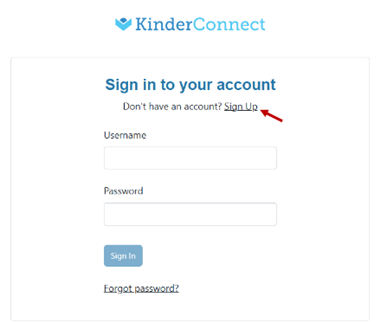
Step 1: Open your web browser and enter the web address https://vapass.doe.virginia.gov/KinderConnect. Click Sign Up to create an account. Note: You cannot access KinderConnect using Internet Explorer. We recommend Google Chrome, Firefox, or Safari.
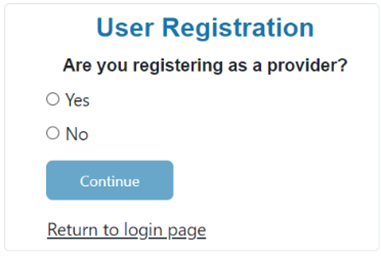
Step 2: Click on Yes to indicate you are a Provider.
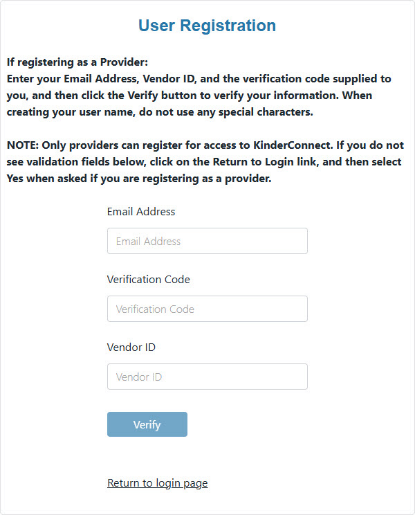
Step 3: Enter the information in the required fields.
Email Address (this should be the email address the account registration link was addressed to)
Vendor ID
Verification Code
Note: Your Vendor ID is a 9-digit number that begins with 511. You can locate it in the following places:
Your CCSP Vendor Agreement Attestation Form (signed during the CCSP provider application process)
Your initial approval letter when you became a Child Care Subsidy Program provider o A Child Care Purchase of Service Order (POSO)
Your VA-ECC Provider Portal profile page (note: portal access will only be available until January 8, 2026, 5 PM EST)
Step 4: After entering the required information, press Verify.
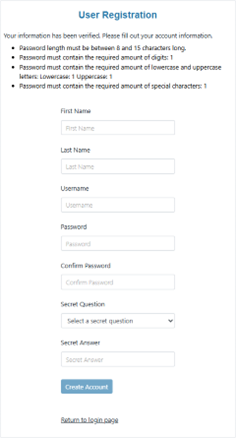
Step 5: Enter your first and last name, then create a username and set up your security information and password. Make sure to complete all required fields. User Name requirements:
Must not include special characters
Must not include spaces
Password requirements:
Must be between 8 and 15 characters.
Must contain the required number of digits: 1
Must contain the required amount of lowercase and uppercase letters: Lowercase: 1 Uppercase: 1
Must contain the required amount of special characters: 1
Note: Passwords are case-sensitive.
Step 6: Press Create Account.
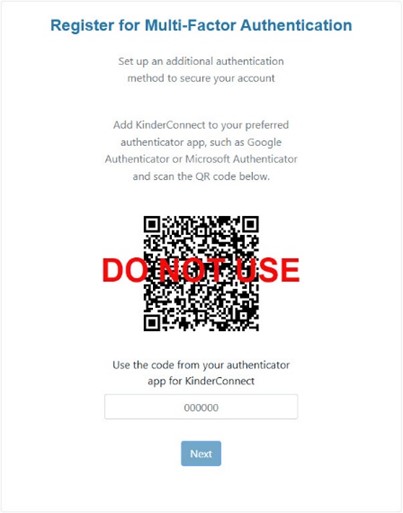
Step 7: The Register for Multi-Factor Authentication screen appears.
Open an authenticator app on your smartphone (such as Google Authenticator or Microsoft Authenticator) to scan the QR code.
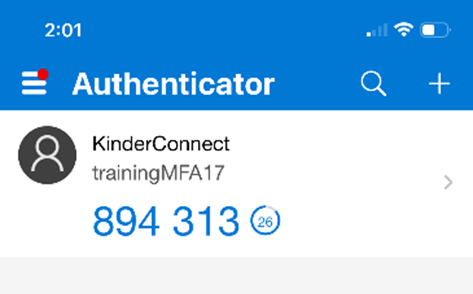
Step 8: After scanning the QR code, the app will show KinderConnect on your list of accounts.
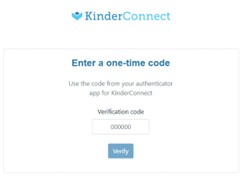
Step 9: Use the code shown in the app to enter the Verification Code in KinderConnect. Press Verify.
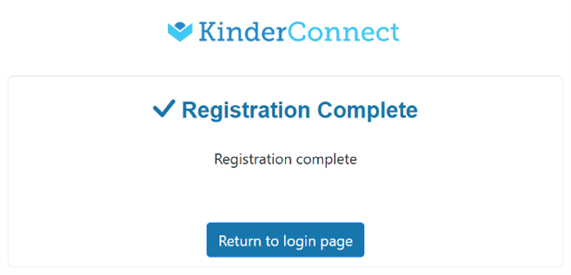
Step 10: A message will appear indicating that the registration for Multi-Factor Authentication has been completed. The user can now log in to KinderConnect using the Username, Password, and Multi-Factor Authentication
Related Posts Adding Operators KinderConnect Registration An Operator is a system users able to access the Provider’s KinderConnect account. A Provider can add multiple operators. You should always Search for the Operator before adding a new one to avoid duplication. Step-by-Step Instructions Step 1: Click Detail under Operator. Step 2: Press …