An Operator is a system users able to access the Provider’s KinderConnect account. A Provider can add multiple operators. You should always Search for the Operator before adding a new one to avoid duplication.
Step-by-Step Instructions
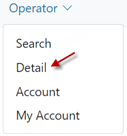
Step 1: Click Detail under Operator.
Step 2: Press New, then enter the required information of the Operator indicated by a red asterisk (*) and click Add Provider.
Note: Every Provider must have at least one Operator with the role Provider Administrator. Ensure that your Provider has at least one Operator of this type.
Note: Checking the Inactive check box will inactivate the Operator. This Operator will not be able to logon if this is checked.
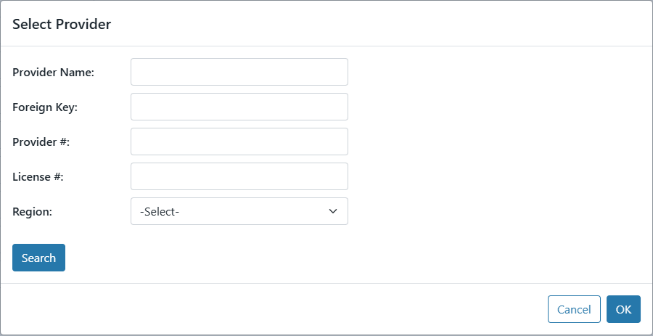
Step 3: Enter the Provider Name and press Search to locate.
Step 4: In the search results, click to select the name of the Provider and press OK to return to the Operator Detail page.
Step 5: Once the Operator details have been added, it is necessary to add the login-related information. This process will be different from Commonwealth Operators.
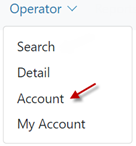
Click Account under Operator.
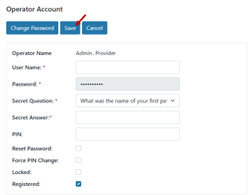
Step 6: Enter the required information of the Operator indicated by a red asterisk (*). Note: You must select the Registered checkbox to add the account. It will not be created if you leave it unchecked.
Step 7: Press Save. The system displays a message indicating that the record was saved successfully.
Related Posts Adding Operators November 17, 2025 KinderConnect Registration November 17, 2025All Posts Providers must complete self-registration prior to accessing KinderConnect. Self-registration is a onetime process for each Vendor ID. The first individual from the Provider organization to register will be associated with the Provider record in KinderConnect and will …